Citrix Tool Suite
This page is intended to help clients set up, log in, and troubleshoot our Citrix Tool Suite. If you continue to experience issues after following the guidance on this page, please contact the SpiderRock Support Desk using the information at the bottom of this page.
Setup Instructions
- Click the Citrix link below to download the 2205 version of Citrix Workspace.
- Log into Citrix Workspace using the username and password provided by our Client Support Desk.
- Add the following SpiderRock account:
- http://spiderrock.cloud.com - This will allow you to launch the SpiderRock Tool launcher via Citrix directly from your desktop.
- Alternatively, you can access http://spiderrock.cloud.com via any web browser.
- When prompted to add an app, check the available SpiderRock apps, including the "V8 Prod Tool Launcher."
- Launch the V8 Prod Tool Launcher.
Note:
Both test and production accounts are accessed via the same URL. Your username will remain the same, but test accounts (T.####) will only interact with our embedded simulators.
Login Instructions
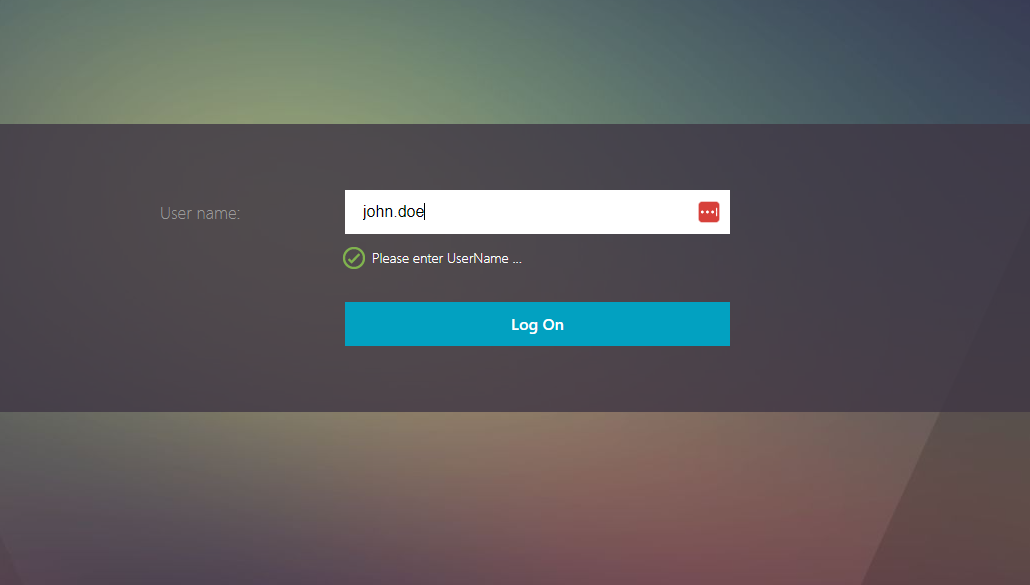
- Navigate to spiderrock.cloud.com and enter your username.
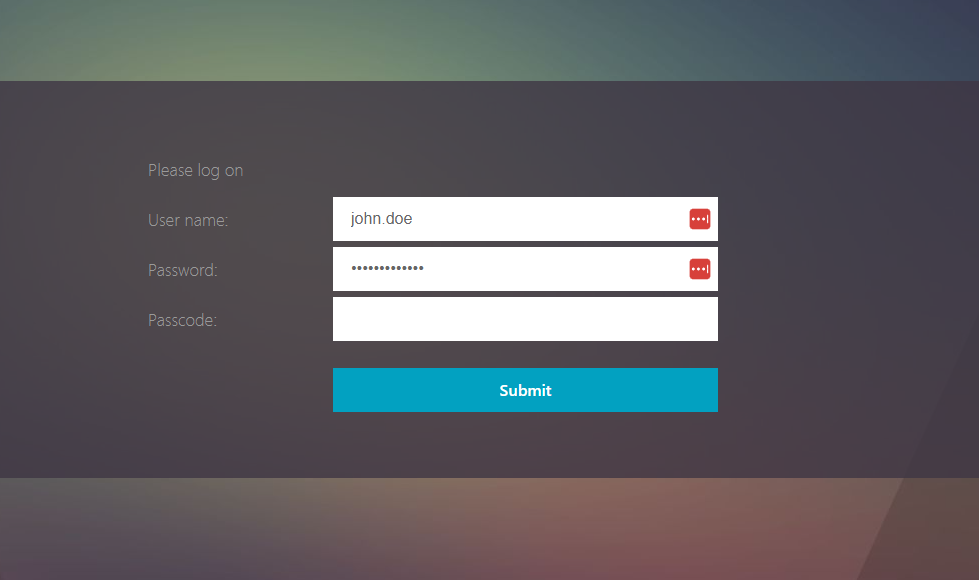
- Enter your password. If MFA is enabled, you will be prompted to enter your MFA passcode.
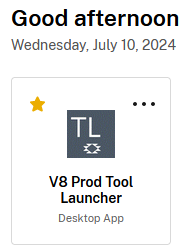
- The V8 Tool Launcher should now be visible on your screen.
Note:
Multiple tool launchers may be available, but V8 should already be starred (favorited).
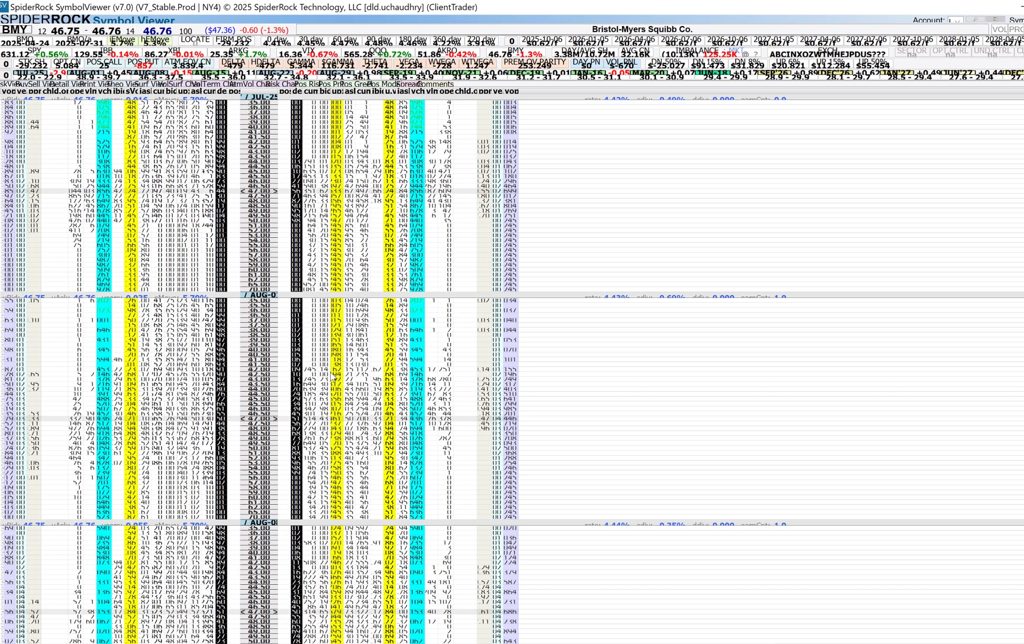
- You will see a Trade Tool Bar like the one below. Select the tool you wish to launch to get started.

Troubleshooting Instructions
This section is intended to help clients quickly resolve the most common access and display issues encountered when logging into SpiderRock tools. Most problems are related to login URLs, multi-factor authentication (MFA), or browser-specific behavior and can be resolved in a few minutes using the steps below.
Access Issues
URL & Login Issues
Logging in via sms.spiderrock.com and no tools appear:- Message like “There are no apps or desktops available to you at this time” may appear.
sms.spiderrock.comhas been deprecated.- Users must log in via
https://spiderrock.cloud.comto access SpiderRock tools.
- This typically occurs when a redirected Citrix URL was bookmarked instead of the main login page.
- Solution:
- Manually add
https://spiderrock.cloud.comto your browser’s bookmark manager. - Remove any older or redirected SpiderRock bookmarks.
- Manually add
Multi-Factor Authentication (MFA) Issues
User has not set up MFA:- MFA is required to access SpiderRock tools.
- Contact the Client Support Desk to receive MFA setup instructions.
- Ensure you are entering the 6-digit passcode from the correct MFA account in your authenticator app.
- If you are unsure which QR code is current, the Client Support Desk can provide your active MFA QR code.
- The Password field requires your SpiderRock password.
- The Passcode field requires the 6-digit MFA code from your authenticator app.
- Entering your password in both fields will result in a login failure.
Citrix Errors During Login
Error: "Failed to start. Contact your system administrator for assistance."- This is often caused by a hung or stale Citrix session.
- Contact the Client Support Desk and request:
- Termination of any active Citrix sessions
- Note: This will terminate any active Citrix windows and log the user out!
- Verification that no sessions are hung on the backend
- Termination of any active Citrix sessions
- This error typically indicates the same underlying Citrix session issue as above.
- Contact the Client Support Desk and request:
- Termination of any active Citrix sessions
- Note: This will terminate any active Citrix windows and log the user out!
- Verification that no sessions are hung on the backend
- Termination of any active Citrix sessions
Firewall Configuration Requirements
To ensure reliable connectivity to Citrix Cloud, the following firewall rules must be in place.
Allowed URLs:spiderrock.cloud.commfa.spiderrock.net(deprecated)*.nssvc.net(including all subdomains)
- TCP/UDP: 443
Note: These rules must allow outbound traffic. Changes may need to be implemented by your internal IT or network security team.
General Slowness and Miscellaneous Troubleshooting Steps
If other users at your firm are experiencing a similar issue:- Log out of Citrix, close your browser or the Citrix Workspace App, and log in again.
- Clear your browser cache and cookies.
- Log in using an Incognito / Private browser window.
- Ensure your browser is fully up to date.
- If updates are pending, update and restart your browser.
- Try a different supported browser if available.
Display Issues
Changing DPI Settings
Differences in display scaling (DPI) between your system and Citrix can occasionally cause text or interface elements to appear incorrectly sized or positioned.
 To fix this:
- Navigate to the caret icon on the bottom main toolbar of your desktop, and right-click on the Citrix icon.
- Select "Advanced Preferences" and select the "High DPI" hyperlink. This is where you can change your DPI settings, depending on the Citrix Workspace version you are running.
- In this menu, you may need to toggle between "No" and "Let the operating system scale the resolution" to find the setting that works for you.
- Please note that anytime you change the DPI settings, the tools must be completely closed and you must log off for the changes to take effect.
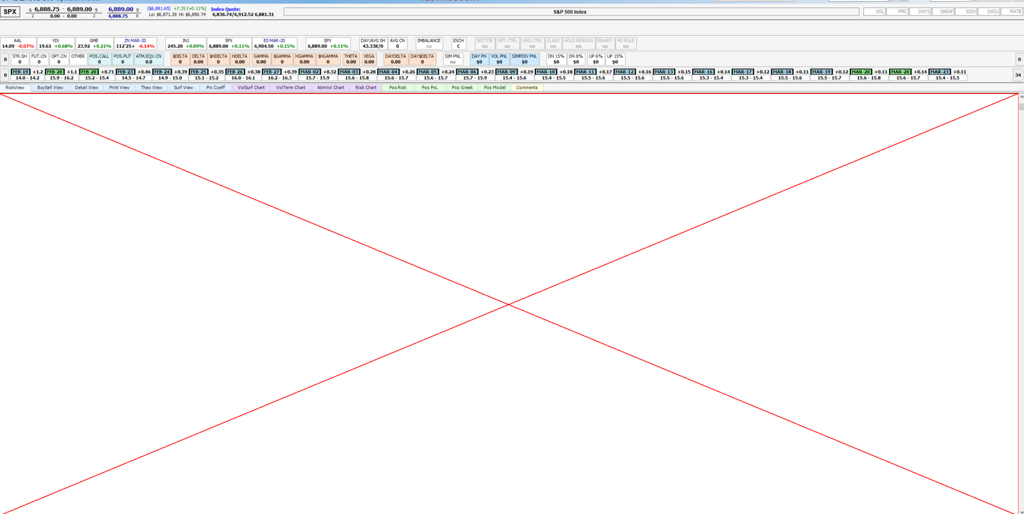
Symbol Viewer (SV) Not Rendering
- Log out of Citrix, close your Citrix tools, and then log back in.
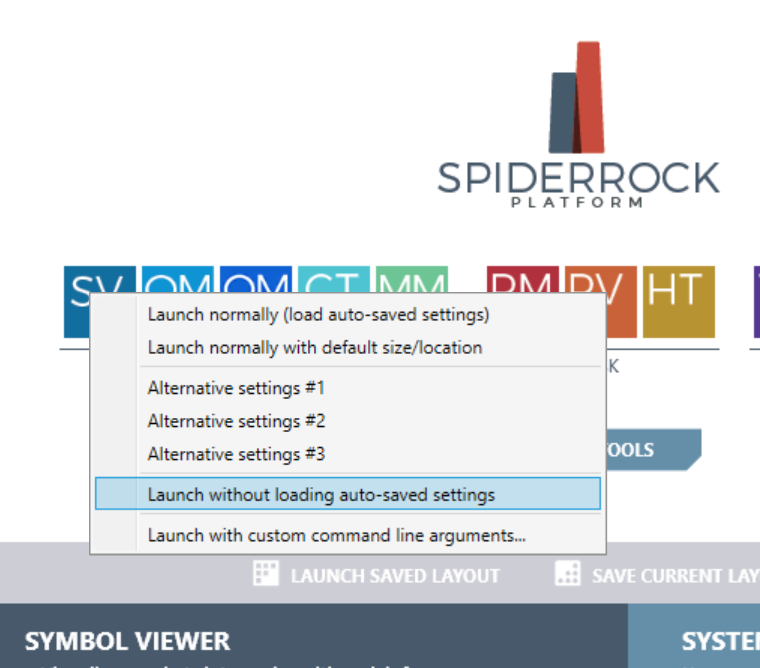
- Right-click on the SV application and launch without loading auto-saved settings.
Contact Information
If you continue to experience issues, please contact the SpiderRock Support Desk.
When reaching out, it is helpful to include:
- A brief description of the issue
- Whether other users at your firm are experiencing the same issue
- Any error messages shown
- A screenshot of the issue being encountered (if relevant)
Email: cs@spiderrock.net
Phone: 312-256-9602